This guide applies to Shopware 6.5 or 6.6 and PHP 8.1+. You need a live24h account, a workspace and an API key with write permission – see the shared steps .
Install
You have two ways – via the Administration or via Composer:
Administration: get the plugin as a direct download from live24h, upload it in the Administration under Extensions → My extensions and activate it.
Composer:
composer require live24h/website-monitor-shopware
bin/console plugin:refresh
bin/console plugin:install --activate Live24hWebsiteMonitor
bin/console cache:clear
Listing in the official Shopware Store will follow.
Step by step
- Open the plugin configuration and enter the live24h API key.
- Leave the API Base at
https://api.live24h.euunless support specifies a different environment. - Save and use the connection test.
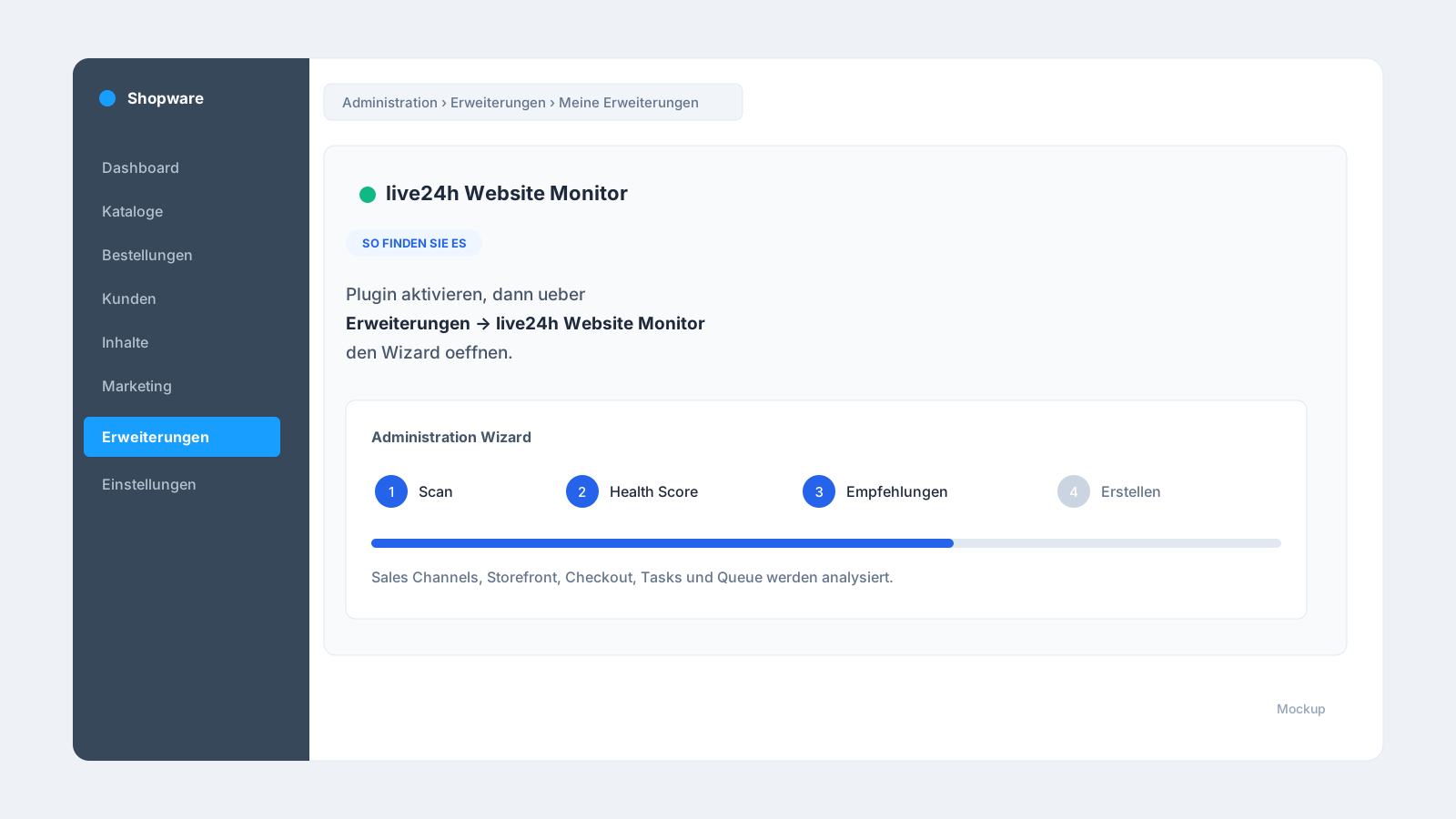
- Open the Administration Wizard.
- Scan Sales Channels, Storefront as well as product, cart and checkout URLs.
- Review the Shop Health Score, plan hints and suggestions.
- The checkout is preselected; cart and account are available as suggestions you can switch on.
- Up to 12 Scheduled Tasks and message-queue workers can be added as a Heartbeat.
- Select the checks and click Create.
For repeatable rollouts, the CLI command bin/console live24h:monitor:scan is available (with --apply it creates the default suggestions directly, with --sales-channel-id=<id> for a specific channel).
Troubleshooting and tips
The live24h module is not visible in the Administration.
Check whether the plugin is activated and clear the cache with bin/console cache:clear. After an update, a hard reload of the browser also helps. In some setups, the Administration bundle has to be rebuilt.
“Test connection” fails.
Check the API key (write permission required), the API Base https://api.live24h.eu and whether the server is allowed to connect outbound. Hosting firewalls occasionally block outgoing requests.
The checkout check reports an error even though the shop works. Bot protection, rate limits or an active maintenance mode can block automated requests. Check whether the storefront paths are reachable without a login.
A Heartbeat check stays on “Waiting”. This is normal and not an error: a Heartbeat waits for the first signal from the monitored job (the ping to the Heartbeat URL). As long as the Scheduled Task, queue worker or import run has not reported in yet, the check stays on “Waiting” – not on “Outage”. With the first run, the status switches to “Operational”.
Scheduled Tasks or the queue are not detected. Only registered and active tasks are suggested, and up to twelve of them. A very large number of tasks is deliberately capped so the recommendation stays clear.
The wrong Sales Channel is being monitored.
Select the right Sales Channel in the wizard – or specify it via CLI with --sales-channel-id=<id>.
A suggestion is marked “Plan upgrade required”. The check type is not included in your plan. You can deselect it or upgrade your plan .
Frequently asked questions
Why isn’t a normal homepage check enough? Because a shop generates revenue across several paths. Checkout, cart, product pages and jobs can fail while the home page still loads.
Does the plugin place real test orders? No. The focus is on safe reachability, signal and Heartbeat monitoring – without real payments.
Can I monitor import jobs? Yes. Scheduled Tasks, the message queue and ERP/import syncs can be protected with a Heartbeat.