This guide applies to TYPO3 12.4 to 13.4 LTS and PHP 8.1 to 8.3. You need a live24h account, a workspace and an API key with write permission – see the shared steps .
Install
Composer installation:
composer require live24h/website-monitor-typo3
vendor/bin/typo3 extension:setup
Then, in the extension configuration, set apiKey, optionally siteBaseUrl and apiBaseUrl (default https://api.live24h.eu). Listing in the official TYPO3 Extension Repository (TER) will follow.
Step by step (backend)
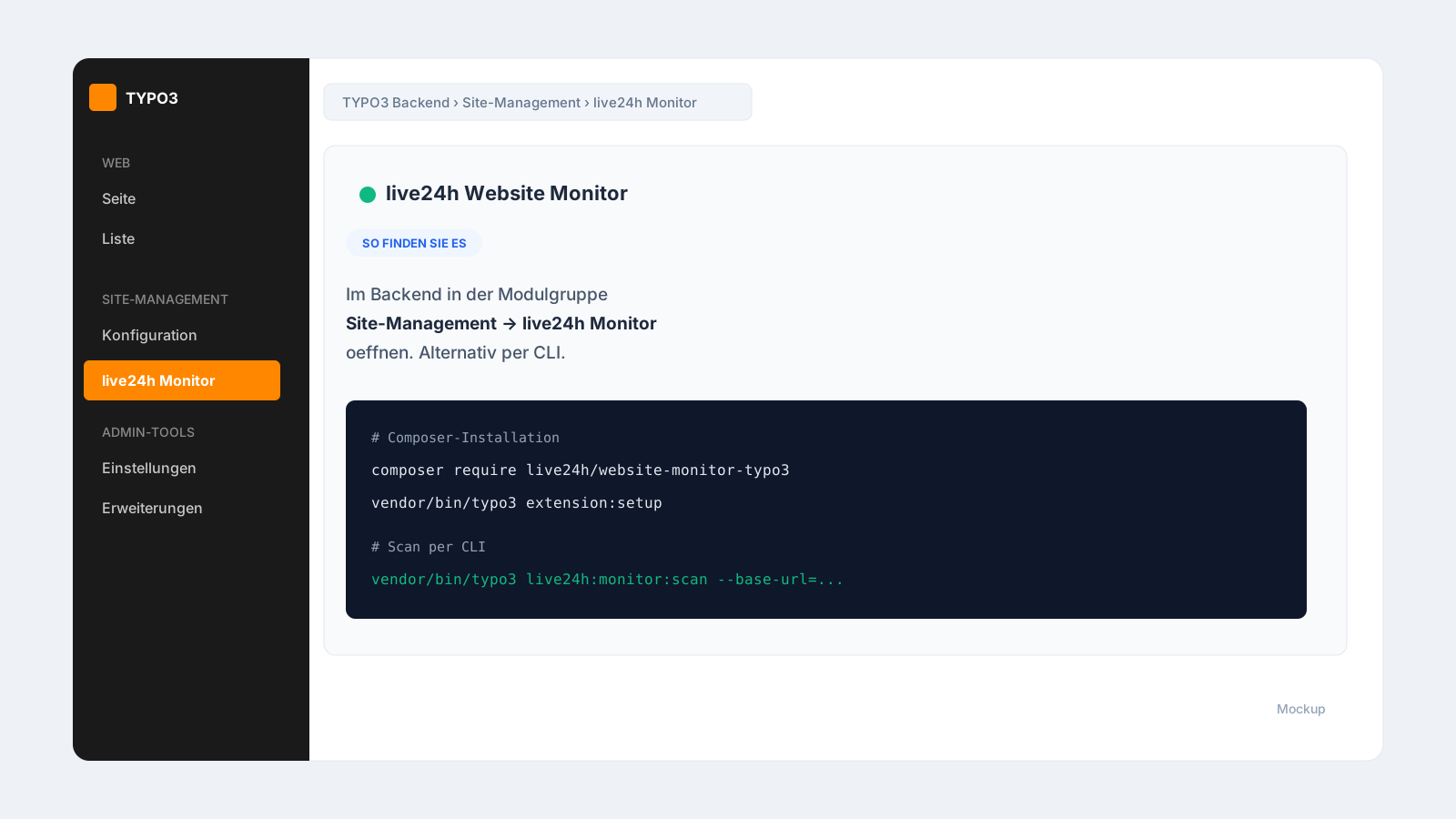
- In the backend, open the module group Site Management → live24h Monitor.
- In the Settings tab, check the connection (“Test connection”).
- Start the analysis of the site.
- Take a look at the Health Score and the recommendations.
- Select the checks – locked suggestions are marked “Upgrade required”.
- Create the checks with one click.
Alternatively via CLI
# Dry-run: shows scan, modules, score and suggestions as a report
vendor/bin/typo3 live24h:monitor:scan --base-url=https://www.example.org

# Create: creates the default suggestions
vendor/bin/typo3 live24h:monitor:scan --base-url=https://www.example.org --apply
For staged rollouts, there is also vendor/bin/typo3 live24h:monitor:rollout (tiers minimal, standard, enterprise – by default as a dry-run).
Troubleshooting and tips
The “live24h Monitor” backend module is missing.
Run vendor/bin/typo3 extension:setup and clear the cache with vendor/bin/typo3 cache:flush. Also check whether your backend user has access to the module.
siteBaseUrl is empty or the wrong URL is being checked.
The base URL is derived from the TYPO3 site configuration. If it is not unambiguous, set siteBaseUrl explicitly in the extension configuration – or specify it via CLI with --base-url=.
“Test connection” fails.
Check apiKey (write permission required), apiBaseUrl (https://api.live24h.eu) and whether the server is allowed to connect outbound.
A Heartbeat check stays on “Waiting”. This is normal and not an error: a Heartbeat waits for the first signal from the monitored Scheduler task (the ping to the Heartbeat URL). As long as the task has not reported in yet, the check stays on “Waiting” – not on “Outage”. With the first run, the status switches to “Operational”.
The Scheduler Heartbeat does not appear. The Heartbeat suggestion requires the TYPO3 Scheduler system extension to be installed and active. Without it, this item is omitted.
Backend or CLI – which should I use?
Both lead to the same result. The backend wizard is close to the client, the CLI is suited to repeatable rollouts. Without --apply, the scan runs as a dry-run.
Frequently asked questions
Why a dedicated TYPO3 extension? TYPO3 projects often have multiple sites and higher demands on traceability. A guided flow fits better than manual individual checks.
Is this only for agencies? No. It suits companies, SaaS operators, public institutions and technical teams alike.
Are multiple domains supported? Yes. Sites and domains are read from the site configuration and can be protected per domain.